How to Build a Seamless Digital Workflow on Tablets & Goodnotes
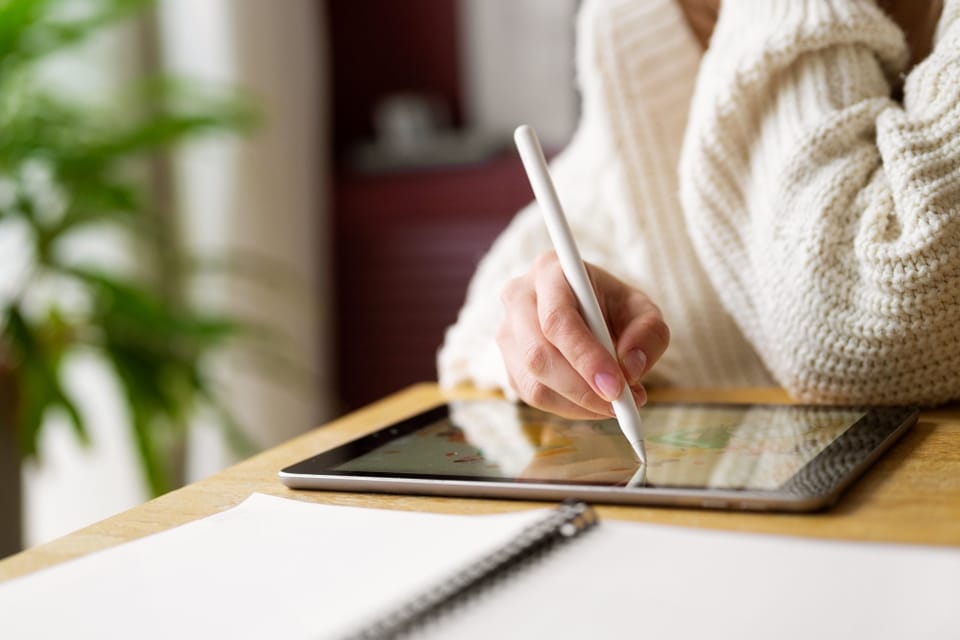
We’ve all been there: you have the latest tablets, a collection of high-end stylus pens, and the most popular apps installed, yet your digital life still feels scattered. You find yourself juggling multiple tabs, missing important reminders, and feeling frustrated by a disorganized screen. Despite having powerful digital productivity tools at your fingertips, it’s easy to feel like you’re working for your devices rather than the other way around.
The solution isn't adding more apps; it’s building a connected digital workflow. Imagine a system where your creative notes, project plans, and professional schedule all speak the same language. By intentionally linking your tools, you move from "busy" to truly productive. In this guide, we’ll walk you through a practical, step-by-step process to build a seamless system across Goodnotes, your calendar, and your tablet.
Why Your Digital Setup May Not Be Working
The most common hurdle in staying organized isn't a lack of effort; it's the "app gap." Many users suffer from disconnected workflow solutions where information lives in silos. You might have a deadline in your digital calendar, a brainstorm in a random notebook, and a to-do list on a sticky note. This duplicated effort leads to mental fatigue and missed details.
Having great software means nothing without an intentional system to bridge them. To truly find productivity in a digital space, you need a clear, repeatable method that links your ideas to your actions. Let’s build that bridge together.
Step 1: Set Up Goodnotes as Your Central Hub
To create a functional workflow, you need a home base. We recommend using Goodnotes as the anchor of your system. This is where your raw thoughts, deep-work sessions, and creative sparks live.
Start by structuring your library with dedicated notebooks for different areas of your life:
- Academics/Work: For lecture notes or meeting minutes.
- Personal: For journaling and habit tracking.
- Planning: Your primary planner file.
Practical Tip: Use a consistent naming convention and a synchronized color-coding system across your notebooks for effortless navigation. To set up a hub that is both functional and inspiring from day one, explore Webudding’s Goodnotes-compatible notebook templates and professional covers.
Step 2: Integrate Your Calendar for Deadline and Schedule Awareness
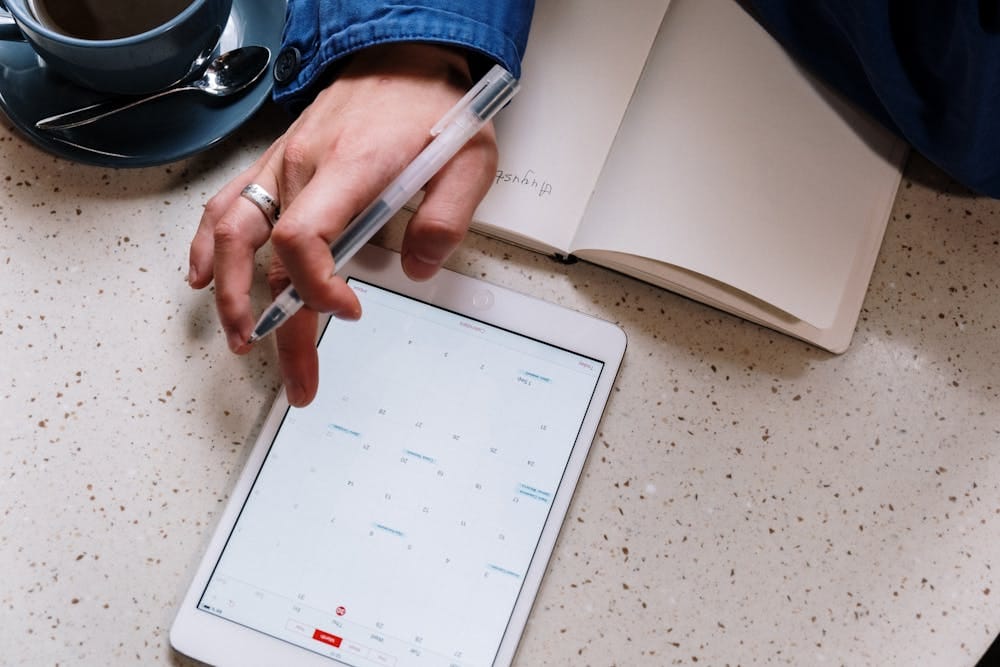
If Goodnotes is the "soul" of your workflow, your digital calendar is the "skeleton." The secret to a high-performing digital workflow is understanding that these two tools serve different purposes: the calendar handles fixed time, while Goodnotes handles content and depth.
Whether you prefer Google Calendar or Apple Calendar, use it alongside your notes to stay aware of your commitments. A powerful habit to adopt is using Split View on your tablet. By opening your calendar and Goodnotes side by side, you can plan your week with full visibility into your fixed appointments.
Webudding’s digital planner templates are designed to mirror the structure of a professional calendar, making the transition between your schedule and your handwritten plans feel like a single, intuitive system.
Step 3: Use a Digital Planner as the Bridge Between Notes and Schedule
The digital daily planner is the missing link in most productivity setups. It sits right in the middle, pulling deadlines from your calendar and action points from your notes into one focused view.
A simple, effective daily routine looks like this:
- Check your calendar for fixed meetings and "hard" deadlines.
- Open your planner in Goodnotes to see your priority list.
- Review your notes from the previous day to see what needs following up.
- Set your top 3 intentions for the day.
At Webudding, we offer a vast range of daily, weekly, and monthly templates designed for this exact purpose. Whether you need a high-function professional layout or a creative "bujo" style, our planners provide the structure needed to turn a scattered workflow into a streamlined solution.
Step 4: Streamline with iPad Features That Save Time
Your iPad is more than a screen; it’s a powerhouse of productivity tools designed to save you seconds that add up to hours. To truly optimize your digital experience, master these native features:
- Split View & Slide Over: Keep your digital calendar visible in a small window (Slide Over) while you take notes in Goodnotes. This eliminates the friction of switching back and forth.
- Universal Clipboard: This is a game-changer. Copy a reference image from Safari or a text snippet from an email on your iPhone or Mac, and paste it directly into your Goodnotes page.
- Apple Pencil Shortcuts: Use the "double-tap" feature to instantly switch between the pen and eraser, maintaining your momentum during a fast-paced lecture or brainstorming session.
Step 5: Personalize Your Workflow So It Stays Consistent
The best digital workflow is the one you actually enjoy using. If your setup feels like a boring corporate spreadsheet, you won't stick with it. Personalization is the key to longevity.
Create a cohesive visual theme across your notebooks and planners. This sense of "digital interior design" makes your workspace feel personal and inviting. This is where digital planner stickers come into play; they aren't just decorative! Use functional stickers to:
- Flag urgent "ASAP" tasks.
- Mark completed milestones.
- Highlight key dates or exam periods.
By combining premium stickers, unique fonts, and aesthetic covers, you turn a basic functional setup into an inspiring environment that reflects your personal style.
Build Your Workflow and Take Back Your Time
Building a seamless digital workflow isn't about having the most expensive apps; it’s about connecting the right tools with intention. When your notes, your schedule, and your tablet features work in harmony, you stop managing chaos and start making progress.
Are you ready to stop the app-switching fatigue? Explore Webudding’s curated collection of digital planners, notebooks, and sticker packs today. Discover the perfect tools to build your ideal setup and experience the clarity that comes when your digital world finally clicks into place.
Comments ()